TechHand Network Toolkit (TNT)
TNT is the online workspace TechHand uses to run your IT contract—and, where we agree, the same place you sign in to request help, see progress, review documentation, and (when enrolled) receive remote support. One system means fewer lost threads: you and your technician are looking at the same tickets, assets, networks, and history. The sections below map what the software can do; your login only includes the areas that match your role and agreement.
New here? Start with Managed IT plans or TNT for your team before diving into the full capability map.
Using TNT day-to-day and only want the staff-vs-client picture? See TNT for your team. Remote agent installs are also covered on Remote technical support.
Product screenshots below use TechHand Pro Solutions as the example organization (plus a labeled marketing-demo ticket). Customer payment screens and other clients’ records are intentionally omitted.
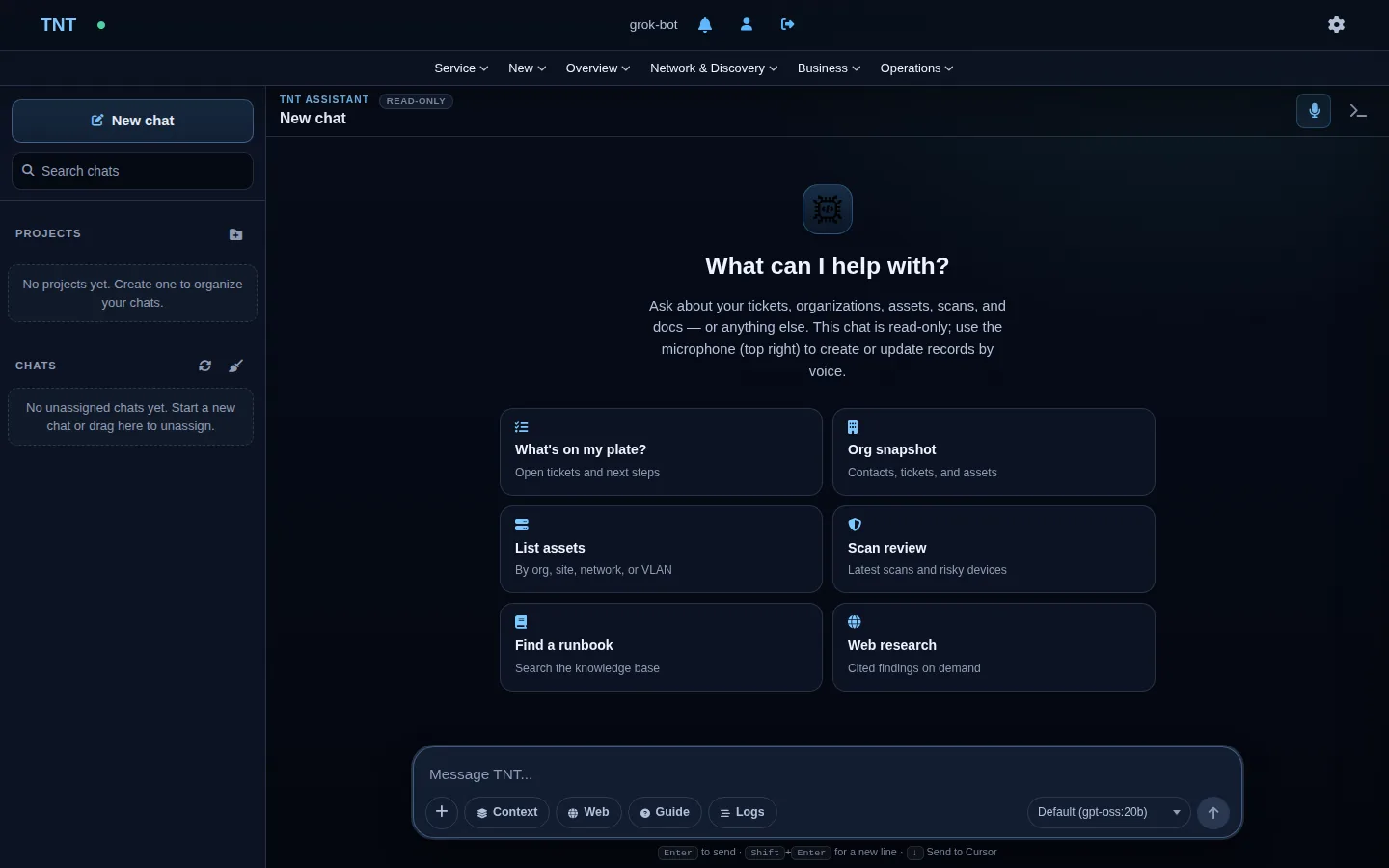
Access, roles, and scope
Not everyone needs the same screen. Access is grouped by areas of the app—support tickets, password vault, remote control, AI chat, and so on—so each person sees what their job requires. Typical roles range from full administrators and technicians (who may work across clients where allowed) to client-style logins that stay inside your organization.
In practice
An owner might approve estimates and see high-level tickets; a site manager might submit requests and read shared docs; TechHand staff carry the technical, billing, and remote-support workflows. Specific screens are turned on per contract and per role.
- Invites, password reset, and optional multi-factor authentication are handled inside the product.
- Administrators can review and adjust who sees which areas so client contacts and TechHand staff each get an appropriate slice of data.
- The deepest tools (database maintenance, disaster-recovery workflows, household/finance operator screens) are used by trusted TechHand staff—they are not screens everyday users see or need.
Ground rule
This page describes the platform as built. What you see after you sign in depends on TechHand’s configuration for your contract and the role assigned to your account. Screenshots below are from the live staff UI and may show more than a client login.
Overview & AI
After sign-in, Home is a project-based AI workspace. Hub and Dashboard summarize what needs attention—open work, invoices, docs and scan activity. Exact tiles change as the product evolves.
In practice
AI chat, when turned on for you, answers from your permissioned context—documentation, assets, tickets, or projects you are allowed to see—not from the open web as a generic chatbot. That keeps answers relevant to your environment and role.
- Home — signed-in AI chat landing experience with projects.
- Hub — KPI-style hub for alerts, workload, invoices, and recent activity.
- Dashboard — classic ops dashboard for day-to-day metrics.
- Projects — group larger initiatives so related tasks and conversation stay together.
Service desk & what a ticket tracks
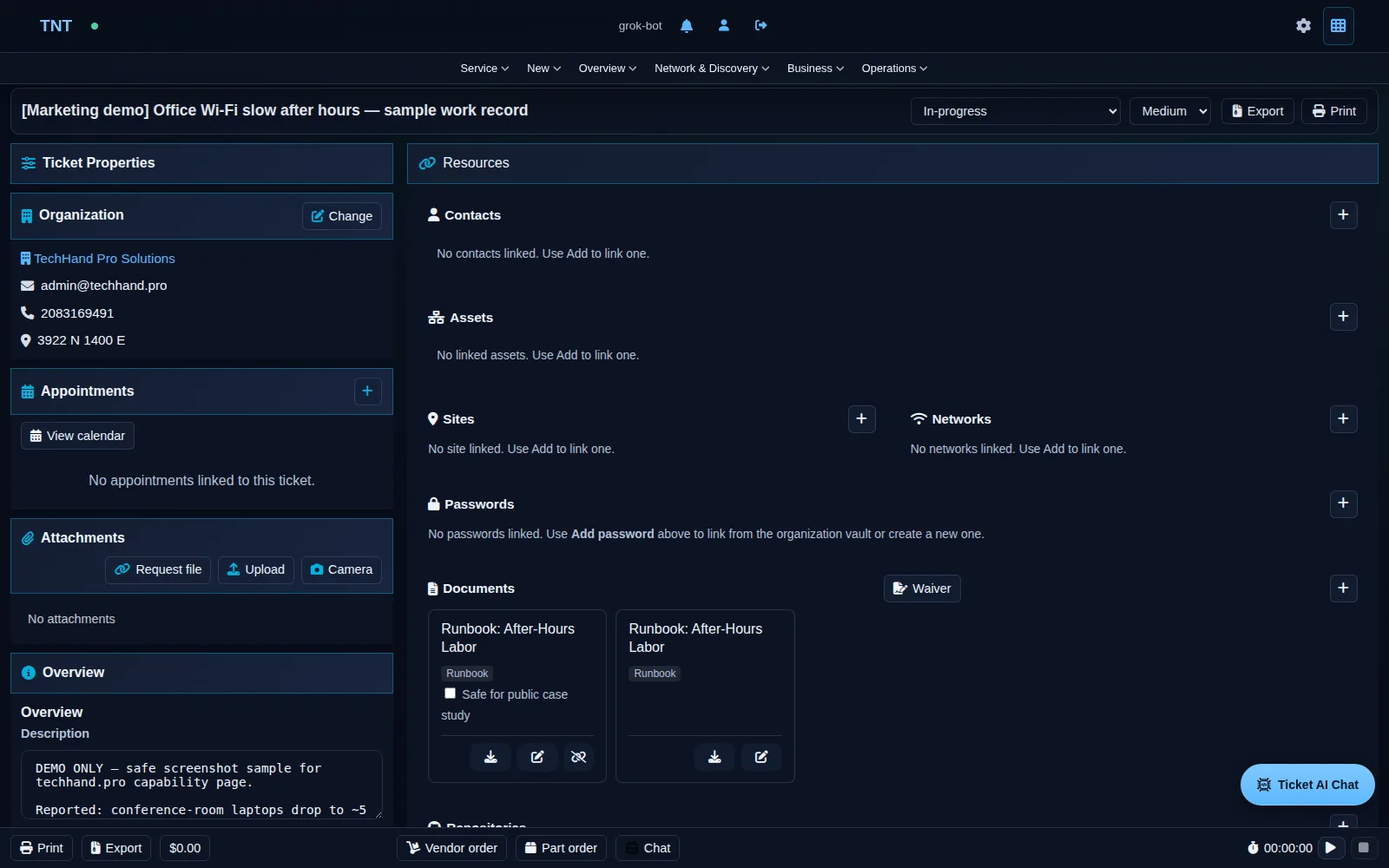
A ticket is the durable work record—not just a subject line. Everything technicians need for that job can hang off one page: who it is for, what gear is involved, what was said, what checklist was followed, and what files were captured. The screenshot is a labeled marketing-demo ticket on TechHand Pro Solutions (office Wi‑Fi after hours).
In practice
Open a ticket when something breaks or you need a change. Status and priority stay visible; public notes go to the customer portal when shared, while internal notes stay staff-only. Link the contact who called, the site/network/AP involved, a vault password when needed, and a worksheet so the visit isn’t improvised.
Tracked on a ticket
- Lifecycle — title, description, status, priority, type, category, tags, assignee, due date, parent/child tickets.
- Organization binding — which customer the work belongs to (with address/phone summary on the detail).
- Resources — linked contacts, assets, sites, networks, vault passwords, documents, waivers, and git repos.
- Conversation — public and internal notes; SMS/email channels when configured; pinned notes.
- Worksheets & todos — checklist templates applied to the ticket; ticket-scoped action items.
- Time & attachments — labor time logs; upload / camera / secure “request file” intake links; before/after photo roles.
- Scheduling — appointments tied back to the ticket; calendar with Google sync when enabled.
- Ticket AI chat — assistant scoped to that ticket’s permissioned context.
- Also around the desk: Todos, Meetings, Voice, Leads, Website chats, and staff time clock—without putting payment UIs on this page.
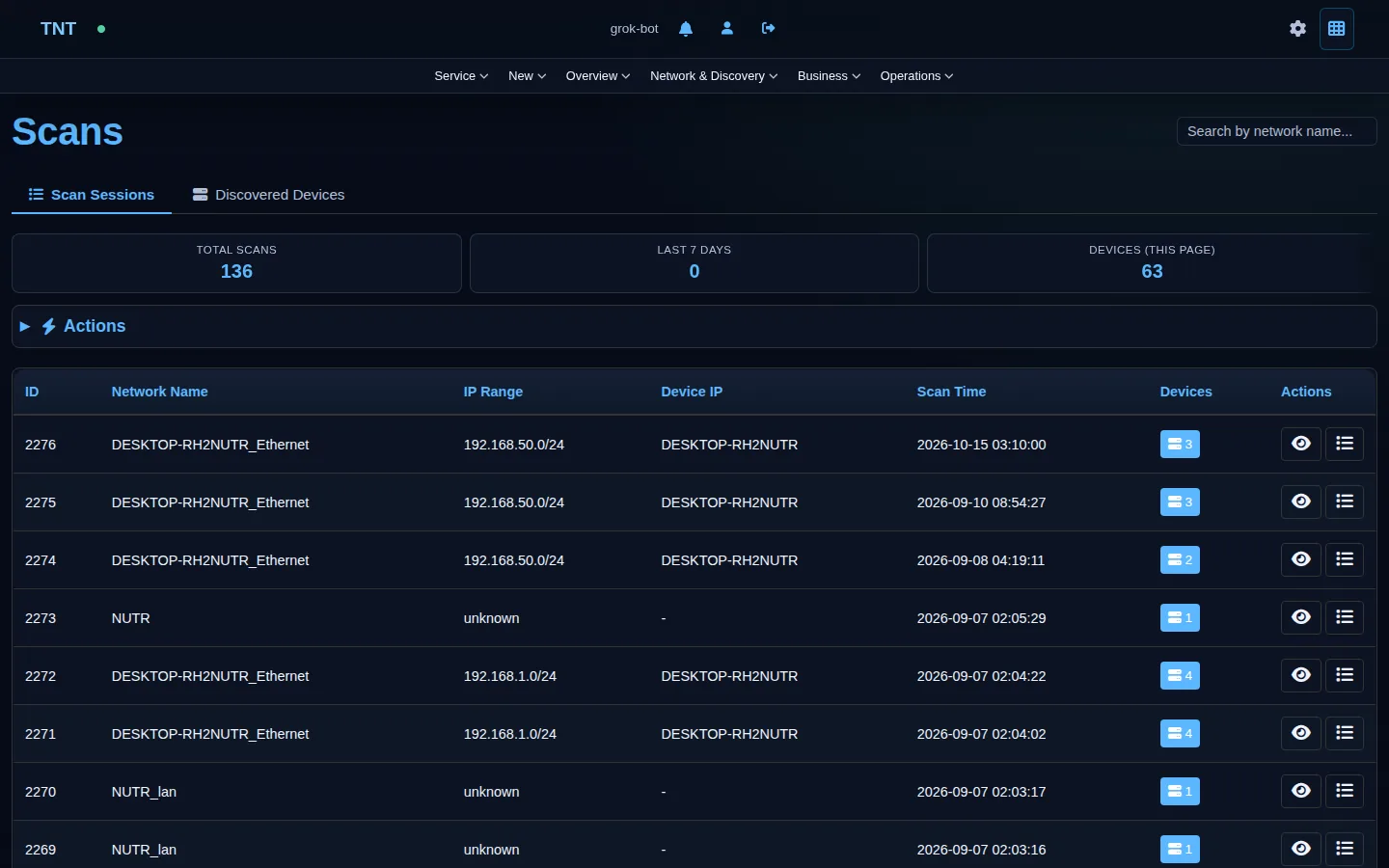
Network & discovery
Documented networks and scheduled or on-demand discovery help answer a practical question: what is actually on this office or shop network? Scans use safe defaults and agreed scope—important for accuracy and for not disrupting production gear.
In practice
Use discovery to support onboarding, insurance or audit questions (“what devices exist here?”), and change control before upgrades. Review screens let humans confirm or correct inferred device types instead of treating a best guess as fact.
- Networks — create and maintain records for each documented network or VLAN, with technician analysis views.
- Scans — configure runs and recipes, track progress, export results, and review statistics.
- Scan History — review hosts found on past scans.
- Device Types — human confirmation of inferred device classification.
- Host WiFi — host adapter WiFi scan/connect tools where feature flags allow (privileged).
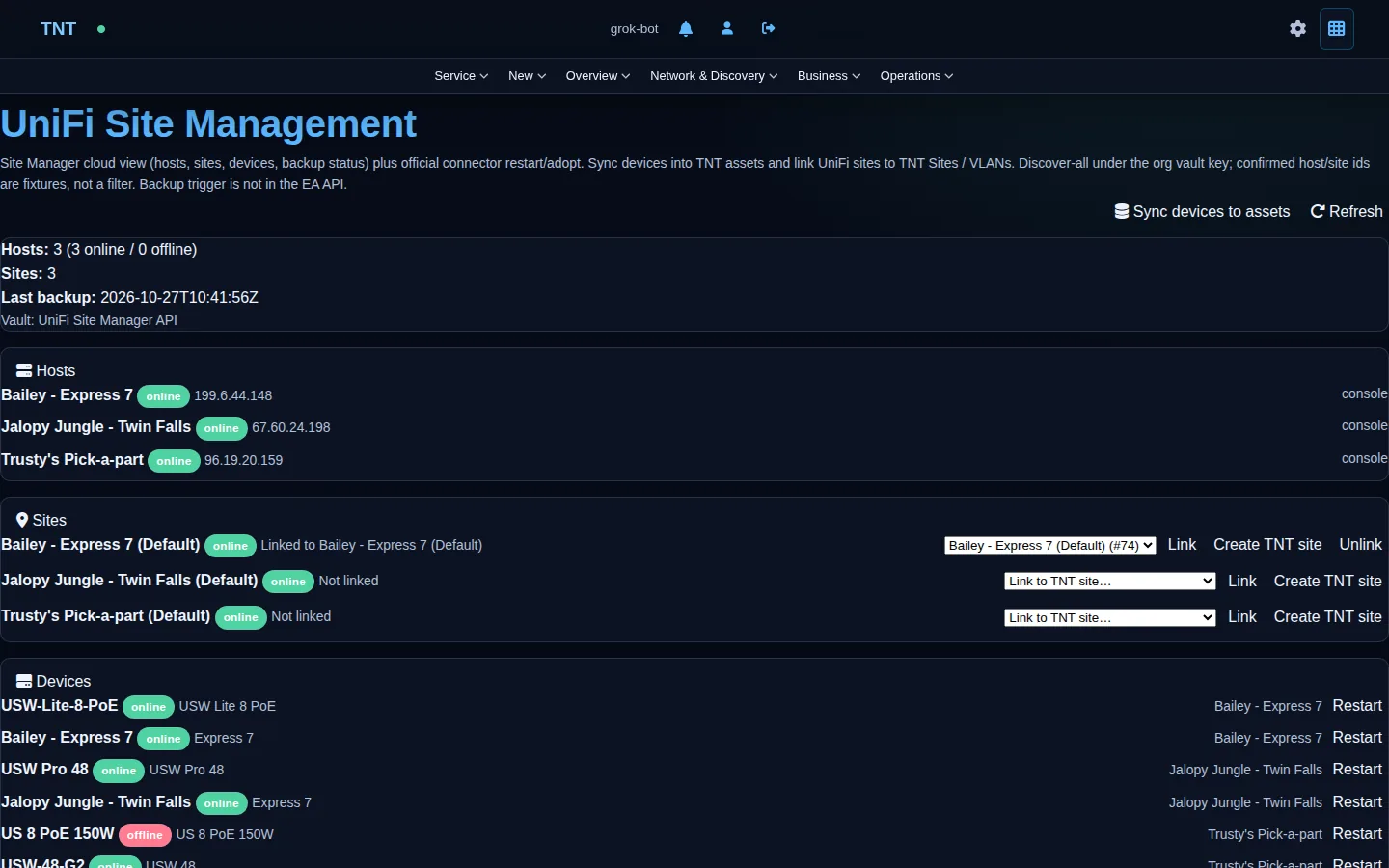
UniFi, assets & security reports
Asset records are the business ledger for hardware. UniFi Site Manager brings hosts, sites, devices, clients, backups, and adopt/restart actions into the same workspace—and can sync into the asset CMDB. Security-style reports summarize what discovery and inventory already know.
In practice
Plan laptop refreshes from a single list, prove inventory after a move, or open a UniFi site to restart an AP without juggling a separate portal—when that site is linked for your org.
- UniFi Sites — Site Manager hosts, sites, devices, networks, firewall, alerts, ISP metrics, backups, adopt/locate/upgrade, and asset sync.
- Assets — device CMDB with detail pages, import/export, sites, risk fields, and links to discovery where applicable.
- Bitdefender GravityZone deploy/link actions on org assets when that integration is configured.
Security reports & PCI readiness
Per-device and per-network security-style reports summarize what discovery and inventory already know. If you take card payments, TNT helps you prepare for official scans on your schedule—it is not the official ASV scan, and no tool can honestly promise a pass. Exports support leadership and insurers without putting payment UIs on this page.
Organization hub — what we track per customer
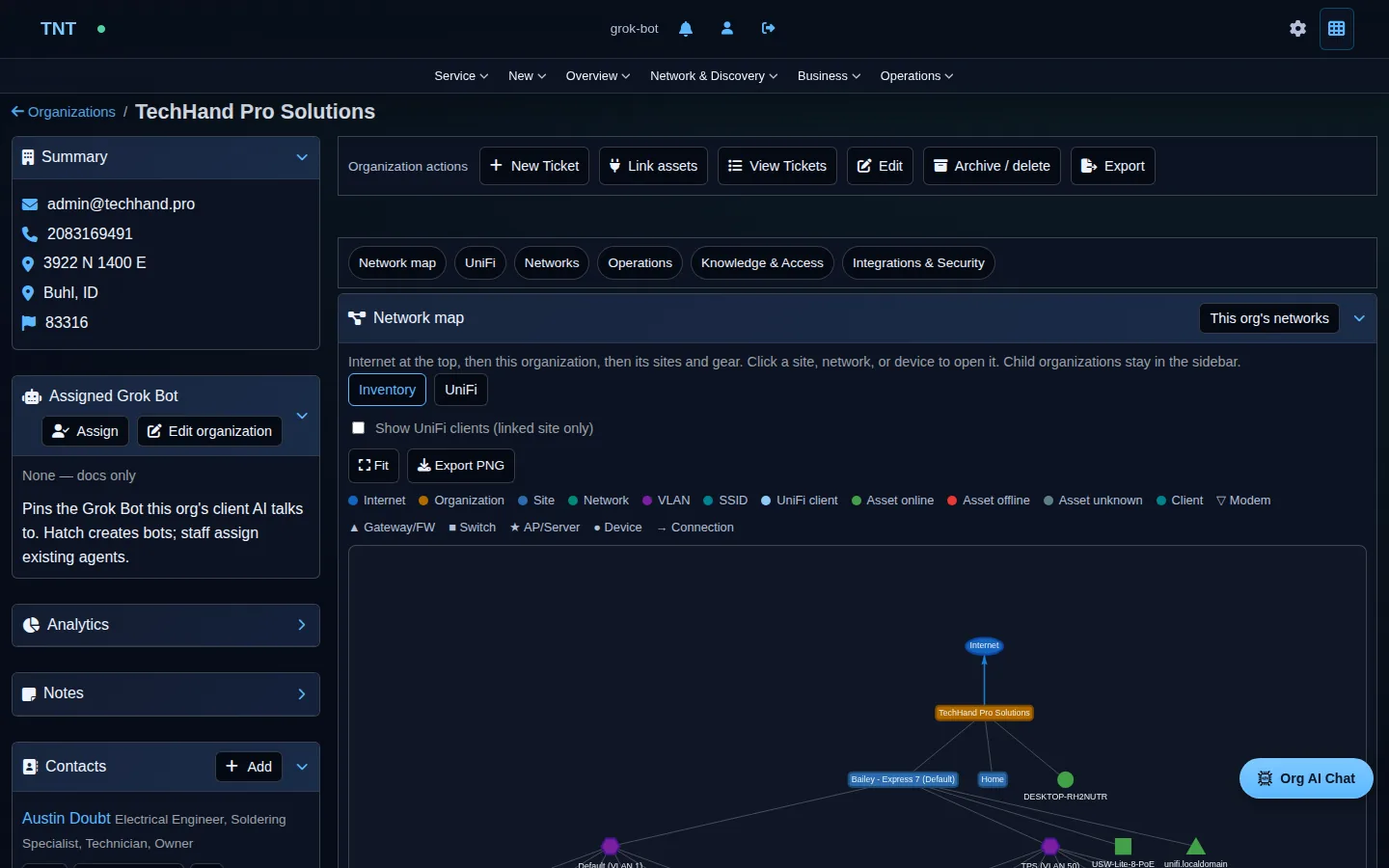
Each customer is an organization record with a hub page. Example below: TechHand Pro Solutions—summary contact info, contacts with roles, network map (sites → networks/VLANs → gear), UniFi, operations, knowledge, and integrations. That is the “business memory” of the IT relationship.
In practice
From one org page you can open a new ticket, link assets, walk the network map, jump into UniFi, or open docs and vault entries scoped to that customer—without hunting across spreadsheets.
Tracked on an organization
- Profile — name, email, phone, mailing address, notes, legal entity type, archive state.
- People — contacts with roles (owner, technician, billing, etc.), primary/bill-to flags.
- Places & topology — sites, networks/VLANs/SSIDs, child orgs, visual network map, UniFi link.
- Operations — org tickets, linked assets (+ Bitdefender where configured), attachments/photos, platform hubs, scans.
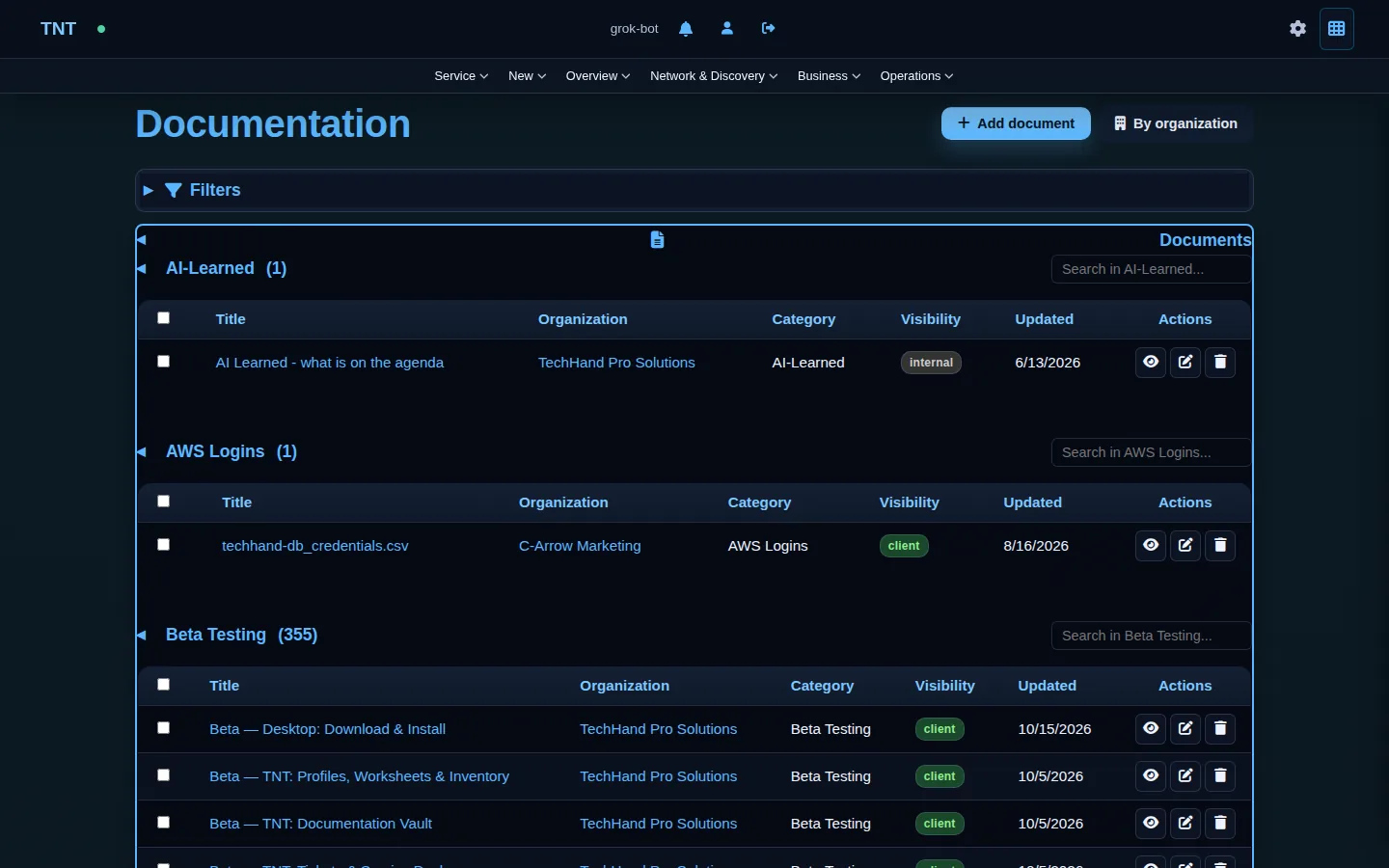
- Knowledge & access — documentation, password vault, domains/SSL, hosting/cPanel, webmail, git repos.
- Remote readiness — bound client agents, unattended opt-in, daily remote digest.
- Commercial (when enabled) — agreements, MSP scope, recurring billing, estimates/invoices—described in the next section; payment screens are not shown here.
- Org AI chat — assistant pinned to that organization’s allowed context; optional assigned Grok Bot.
Billing & MSP
Estimates and invoices live next to the work when your agreement uses them. MSP plans, recurring billing, and part orders keep commercial ops in the same system. We do not publish live payment or invoice screenshots on this page—those screens hold amounts and customer financial detail.
In practice
Convert an approved estimate to an invoice, collect via Stripe Checkout when enabled, or roll ticket labor into charges so quoting and delivery stay aligned. Deeper finance ledgers are operator tools—not everyday client self-service.
- Invoices & Estimates — draft, line items, send/approve, public response links, Stripe checkout.
- Part Orders — vendor parts tied to tickets.
- Recurring Billing — MSP-style templates and runs.
- MSP Plans — managed IT plan catalog, versions, and website sync.
- Finance — ledger, expenses, P&L, payroll hours (privileged / role-gated).
Remote support Featured
TechHand Remote Support is the newer end-to-end path for helping a Windows PC without “please send another screenshot.” A small TNT Client agent enrolls the machine; technicians use Clients and Remote Connections to see fleet status, push updates, and start attended or unattended screen sessions—only where your contract and security review allow.
In practice
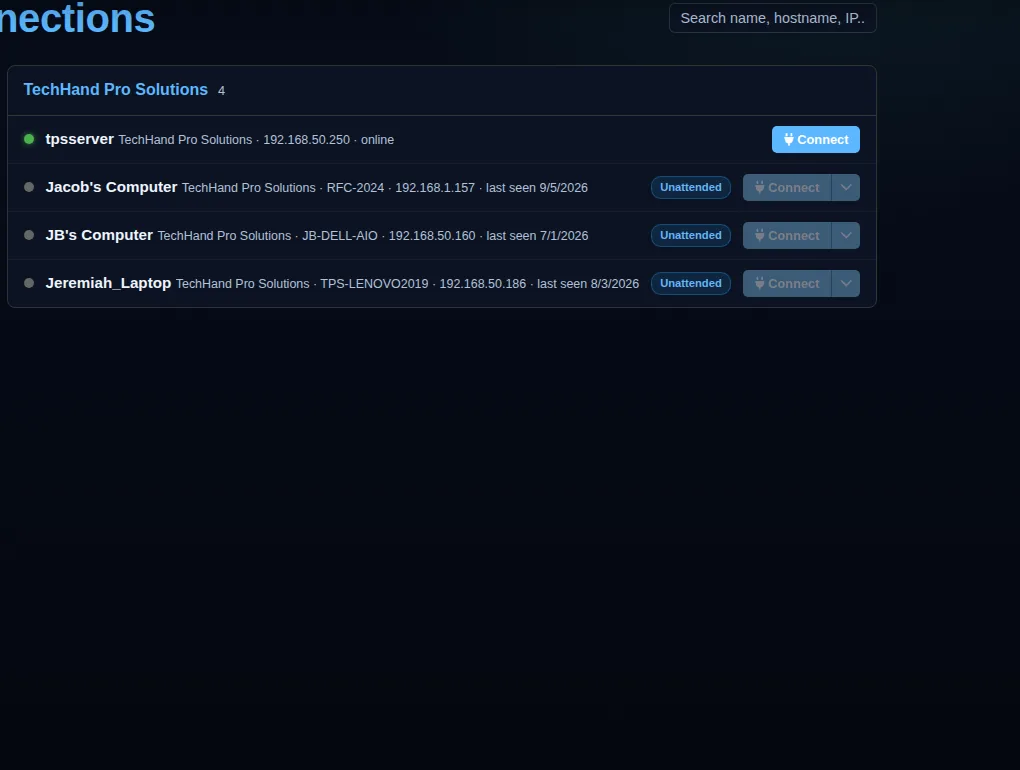
Enroll a shop PC with the public installer, confirm it is online in Clients, then open Remote Connections to Connect—attended with someone at the keyboard, or unattended when that org has opted in. The desktop agent can also open a limited organization portal (tickets, docs, assets) on the machine itself.
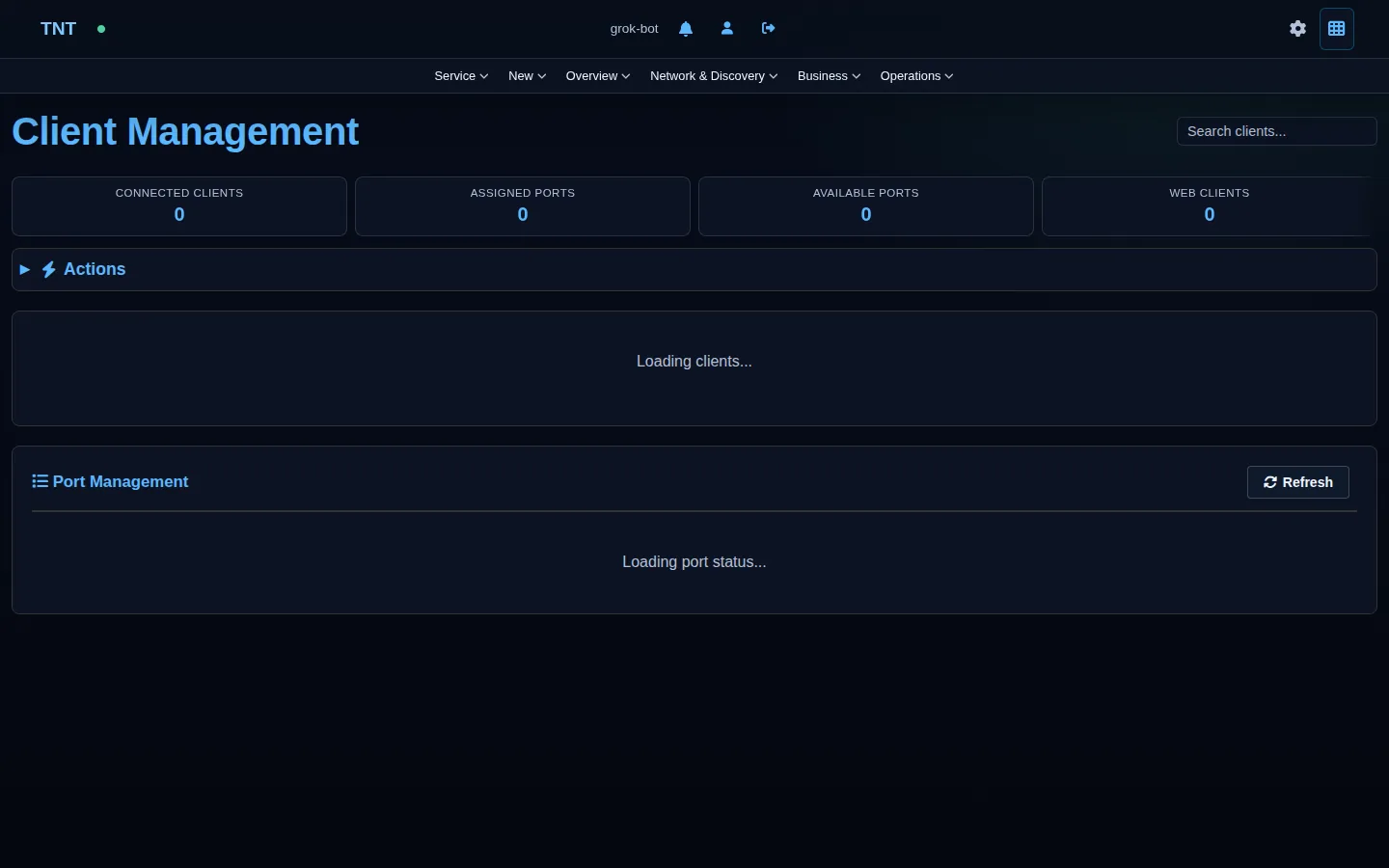
- Clients — connected agents, ports, diagnostics, commands, gather-info, push update, download/publish installers (admin-class).
- Remote Connections — Recent / In Shop / by-organization fleet, thumbnails, session timeline, Connect to view/control.
- Remote viewer — WebRTC “TechHand Remote Support” screen session (attended or unattended when enabled).
- Public installer downloads (
/downloads/tnt-client.exeand zip) for enrolled machines. - Org-hub remote readiness: bind devices, unattended opt-in, daily digest.
- Default client logins do not get remote control—technicians and admins do, when the feature is enabled.
Also see Remote technical support for the customer-facing story of the agent and install path.
Automation, profiles & builders
Automation reduces repeated manual work: the same onboarding checklist, the same bundle of services, or the same sequence a senior technician would follow. Profiles package those steps; AI-assisted builders help draft and refine them under human review.
In practice
Standardize new-hire workstation setup, recurring site visits, or “first 30 days” projects so quality stays consistent. Worksheet templates keep ticket checklists uniform across your team.
- Profiles — reusable runbooks, execution, action catalogs, scripts, and artifacts.
- Step Builder (AI) — guided creation and revision of structured steps with validation before publish.
- Setup Wizard — guided onboarding covering charges, bundles, worksheets, profiles, and documents.
- Worksheet templates — ticket checklists applied consistently.
- Bundles & Inventory — charge templates, inventory, and website publish/pricing sync.
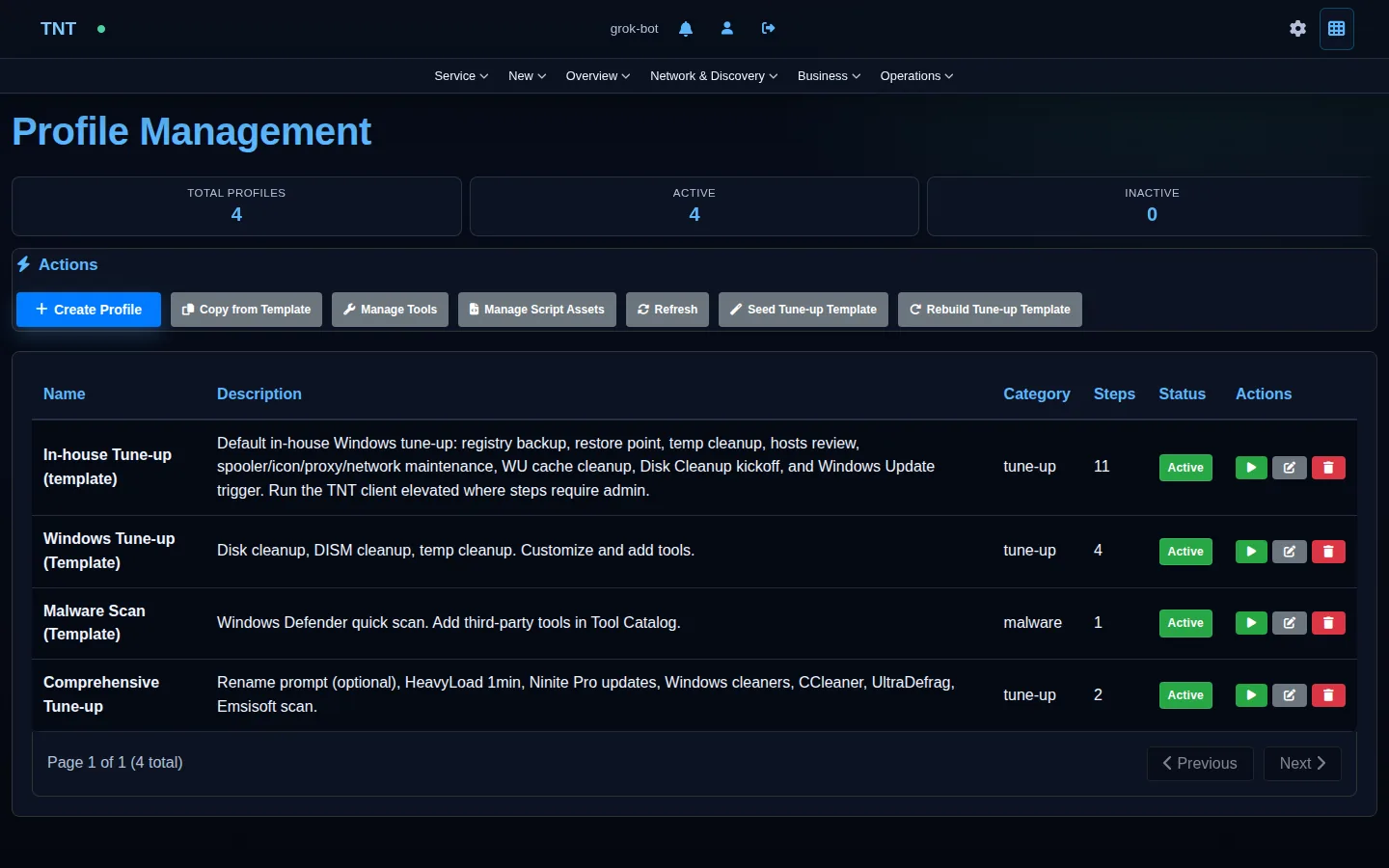
Integrations & extensions
Some capabilities live on the org hub or behind API keys rather than a top-nav dropdown. They are optional and configured when your workflow benefits from them.
Hosting & email
WHM / HawkHost provisioning, cPanel, MySQL migrate tools, domains & SSL, and staff webmail over synced mailboxes—when hosting is enabled for the org.
Security & endpoint
Bitdefender GravityZone company/endpoint inventory and deploy/link from assets. Scan tool packs and signed authorizations gate deeper discovery tiers.
Storefront & API
Per-organization storefront/catalog publish, org tool flags, and org-scoped API keys so approved integrations share the same tenancy model.
- MCP / agent platform — Cursor and Grok bots use the same FastMCP surface (tickets, docs, vault, UniFi, billing, TrueNAS, GoDaddy reads, Workspace directory, and more) with scoped keys.
- Twilio SMS, Google Calendar, Stripe, GitHub, and LLM settings hang off App settings for authorized admins.
- Marketing engine (website CMS, case studies, email campaigns) lives under the settings gear for platform operators—not tenant self-service by default.
Settings, operations & resilience
Behind the scenes, authorized administrators configure email delivery, security policies, branding on invoices, backup hooks, integrations, and how AI features connect. Long-running jobs such as large scans or restore operations surface in a notification center so operators know what is still running.
In practice
Most businesses never touch database or disaster-recovery screens—that is TechHand operator work unless we have explicitly expanded access for your agreement. You still benefit from the same reliability tooling.
- Application and email settings, MFA policy, bot protection, AI (LLM) configuration, billing branding, backup policy hooks, WHM, Bitdefender, Calendar, Twilio, Kali worker, and environment-specific configuration for authorized admins.
- Users and role permissions so page- and feature-level access can be tuned.
- Database maintenance, integrity checks, backup listing, and restore workflows for disaster recovery (privileged use).
- Notification center for long-running operations such as scans, backups, or restores.
The most powerful capabilities—direct database access, backups, and permanent deletion—stay with TechHand’s operators. They are not everyday self-service tools unless your contract explicitly includes that access.
Ready to see this in your environment?
We’ll walk you through TNT relative to your org’s size, compliance needs, and current tools—no commitment required.
+1-208-316-9491 — We respond within one business day