TechHand Network Toolkit (TNT)
TNT is the online workspace TechHand uses to run your IT contract—and, where we agree, the same place you sign in to request help, see progress, and review documentation. One system means fewer lost threads: you and your technician are looking at the same tickets, assets, and history. The sections below describe what the software can do; your login only includes the areas that match your role and agreement.
New here? Start with Managed IT plans or TNT for your team before diving into the full capability map.
Using TNT as part of your business and only want the day-to-day picture? See TNT for your team (staff vs client access and what is coming on this site).
Access, roles, and scope
Not everyone needs the same screen. Access is grouped by areas of the app—support tickets, password vault, AI chat, and so on—so each person sees what their job requires. Typical roles range from full administrators and technicians (who may work across clients where allowed) to client-style logins that stay inside your organization.
In practice
An owner might approve estimates and see high-level tickets; a site manager might submit requests and read shared docs; TechHand staff carry the technical and billing workflows. Specific screens are turned on per contract.
- Invites, password reset, and optional multi-factor authentication are handled inside the product.
- Administrators can review and adjust who sees which areas so client contacts and TechHand staff each get an appropriate slice of data.
- The deepest tools (for example database maintenance and backup workflows) are used by trusted TechHand staff to keep the system healthy—they are not screens everyday users see or need.
Ground rule
This page describes the platform as built. What you see after you sign in depends on TechHand’s configuration for your contract and the role assigned to your account.
Service desk & scheduling
This is how work gets requested, tracked, and scheduled: a structured help desk for issues and projects, plus a calendar when you want visits or maintenance windows on the books.
In practice
Open a ticket when something breaks or you need a change; add comments and attachments so context stays on the record. Printable or shareable views help when you need a paper trail for approvals or budgeting.
In practice
The calendar can connect to Google Calendar so onsite work and follow-ups land where your team already looks. Event context can tie back to your organization or a ticket when that is configured.
- Tickets — list and detail views, comments, time and charges, checklists (worksheets), linked documents, safe references to vault entries, printable layouts, and ticket-scoped chat history when enabled.
- Calendar — scheduling with Google Calendar integration (secure sign-in and event views).
Home, dashboard, and projects
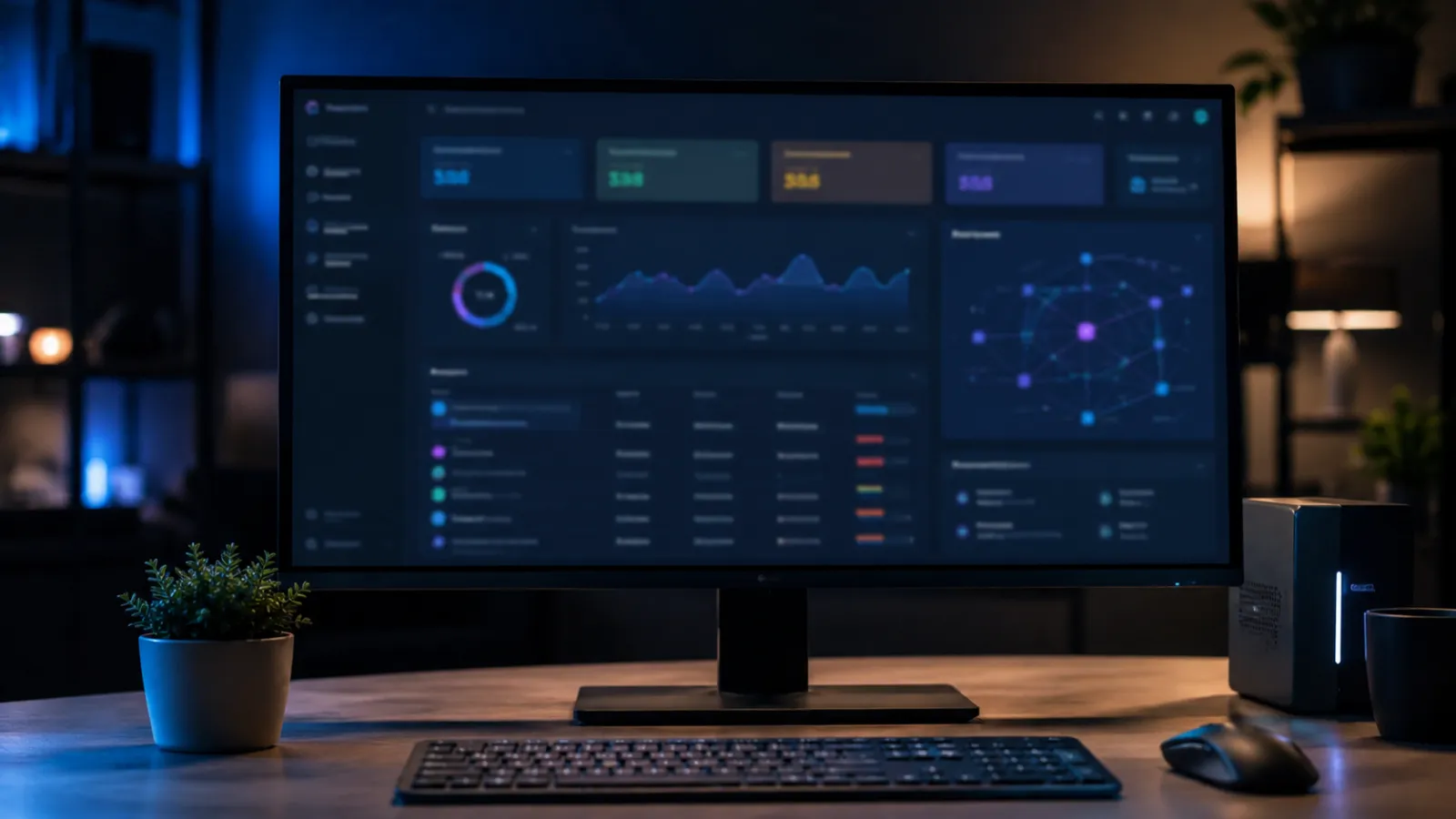
After sign-in, Home is your landing spot. The Dashboard summarizes what needs attention—open work, operational snapshots, and similar widgets (exact tiles change as the product evolves). Projects group larger initiatives so related tasks and conversation stay together.
In practice
AI chat, when turned on for you, answers from your permissioned context—documentation, assets, or projects you are allowed to see—not from the open web as a generic chatbot. That keeps answers relevant to your environment and role.
- Home — signed-in landing experience.
- Dashboard — at-a-glance summary of operational metrics and open work.
- Projects — project list and detail for organizing work alongside related chat.
- AI chat — conversational help scoped to allowed org, project, and asset context.
Network & discovery
Documented networks and scheduled or on-demand discovery help answer a practical question: what is actually on this office or shop network? Scans are configured with safe defaults and agreed scope—important for accuracy and for not disrupting production gear.
In practice
Use discovery to support onboarding, insurance or audit questions (“what devices exist here?”), and change control before upgrades. Review screens let humans confirm or correct inferred device types instead of treating a best guess as fact.
- Networks — create and maintain records for each documented network, with analysis views for technicians.
- Scans — configure runs, track progress, export results, clean up old data, and review statistics for operational tuning.
- Discovered devices — review hosts found on past scans (labeled “Scan History” on mobile).
- Device type review — a human confirms what each discovered device actually is, instead of trusting an automated guess.
- Network maps and analysis — technician-facing views showing how everything connects, where your agreement includes that depth.
Assets & inventory
Asset records are the business ledger for hardware: what you own, where it lives, who uses it, and how it ties back to discovery when a device was seen on the network. That supports budgeting, warranty tracking, and faster support when something needs replacing.
In practice
Plan laptop refreshes from a single list, prove inventory after a move, or give a new hire the right machine without digging through spreadsheets. Import and export help when you already keep data in a spreadsheet or another system.
- Device records with detail pages, import/export, relationships between items, and links to scan-derived devices when applicable.
- Inventory views aligned to your organization’s sites and contacts.
- Performance-tuned views for large inventories so lists stay usable as you grow.
Organizations, docs, vault, billing
These modules hold the “business memory” of IT: who you are as a customer, how we document your environment, where shared credentials live with controls, and how estimates and invoices move from draft to approval.
People & places
Organizations, contacts, and sites keep everyone aligned—especially when you have more than one location.
How-to guides & procedures
Written instructions link to the equipment and people they describe, so the guide for a device lives right next to the device's record.
Passwords
The vault supports controlled reveal and copy flows tied to organizations or tickets, with usage oriented toward accountability.
Money & files
Estimates and invoices with line items, templates, bundles, and catalog hooks reduce back-and-forth on scope and price.
- Organizations — customers, contacts, sites, import/export, and related relationship data.
- Documentation — organization-wide and global documents, editing, links to orgs, contacts, and assets, plus AI-assisted document workflows where enabled.
- Password vault — organization- and ticket-linked credentials with controlled access patterns.
- Invoices & estimates — drafting, line items, send and approve flows, public response links for billing questions, charge templates, bundles, and catalog integration.
- Attachments — files tied to organizations, assets, documents, tickets, projects, and chat sessions.
- Supporting areas include domain and SSL tracking, vendors and locations, and optional integrations such as Hudu documentation sync where that deployment is active.
Security reports & exports
Security-style reports summarize what discovery and inventory already know about a device or a whole network. They are meant to answer concrete questions—what stands out, what changed, what should we fix next—not to replace a formal penetration test with marketing language.
Getting ready for required scans (for example, card-payment scans)
If your business takes card payments, you face an official pass/fail security scan—and the official result rarely explains what to fix first. TNT helps you prepare on your own schedule: it finds and reports issues using the same network and equipment data your technicians already work from, and optional AI can help explain and prioritize what was found—always reviewed by a human. To be clear: this is preparation, not the official scan itself, and card-payment rules (PCI DSS) involve your people and processes too—no tool can honestly promise you'll pass.
In practice
Share a clean report with leadership or an insurer, attach one to a ticket as proof a problem was fixed, or download the raw data (spreadsheet-friendly formats) for your own analysis tools. Even very large reports stay fast and usable.
- Per-device and per-network structured outputs grounded in scan and asset data.
- Downloads and exports in multiple formats (including machine-readable options) for spreadsheets or downstream tools.
- Streaming views, including efficient variants for very large reports, so you are not stuck waiting on a single giant file in the browser.
Automation, profiles, and AI builders
Automation reduces repeated manual work: the same onboarding checklist, the same bundle of services, or the same sequence of steps a senior technician would follow. Profiles package those steps; AI-assisted builders help draft and refine structured procedures before they are published—still under human review where it matters.
In practice
Standardize new-hire workstation setup, recurring site visits, or “first 30 days” onboarding projects so quality stays consistent and nothing obvious is skipped. Worksheet templates keep ticket checklists uniform across your team.
- Profiles — reusable definitions, execution, action catalogs, scripts, artifacts, and tooling scoped to each profile.
- Step Builder (AI) — guided creation and revision of structured steps, with validation before publish.
- Setup Wizard — guided onboarding flows covering charges, bundles, worksheets, profiles, and documents.
- Worksheet templates — ticket checklists and templates so repeated work stays consistent.
- Bundles & catalog — products and bundles aligned with invoicing and field delivery.
- Supporting AI workflows inside the product include worksheet, document, and setup assistants plus status and analysis tools where those features are enabled.
Storefront, org tools, and extensions
Some organizations want a standardized catalog—hardware, services, or bundles—published in a controlled storefront experience. Others only need secure hooks for approved tools and scripts. These capabilities are optional and are configured when your workflow benefits from them.
In practice
Offer a repeatable “approved stack” to branch offices, or give technicians a shared script library without emailing attachments around. API access and import paths stay behind explicit enablement so expansion stays deliberate.
- Per-organization storefront with catalog, bundles, publish, and sync when that mode is turned on.
- Organization tool access, API keys, feature flags, and controlled import paths for external tools.
- Script libraries for reusable scripts stored per organization.
TNT Client agents & portal
A small agent on managed Windows PCs can feed health signals and diagnostics back into TNT so technicians see facts instead of playing telephone. Remote command and upload channels exist where your contract and security review say they should—so problems get diagnosed faster with less “please send another screenshot.”
In practice
Proactive checks catch low disk space or failing services before they become outages; installers are distributed in a controlled way so only enrolled machines participate.
- Controlled installation, remote assistance, diagnostic uploads, and device details for enrolled computers.
- Heartbeat-style status from client agents, managed from the technician console.
Settings, operations, and resilience
Behind the scenes, authorized administrators configure email delivery, security policies, branding on invoices, backup hooks, and how AI features connect. Long-running jobs such as large scans or restore operations surface in a notification center so operators know what is still running.
In practice
Most businesses never touch database or disaster-recovery screens—that is TechHand operator work unless we have explicitly expanded access for your agreement. You still benefit from the same reliability tooling.
- Application and email settings, MFA policy, bot protection, AI (LLM) configuration, billing branding, backup policy hooks, and environment-specific configuration for authorized admins.
- Database maintenance, integrity checks, backup listing, and restore workflows for disaster recovery (privileged use).
- Notification center for long-running operations such as scans or restores.
- Isolated diagnostic tools for controlled test environments.
The most powerful capabilities—direct database access, backups, and permanent deletion—stay with TechHand's operators. They are not everyday self-service tools unless your contract explicitly includes that access.
Ready to see this in your environment?
We’ll walk you through TNT relative to your org’s size, compliance needs, and current tools—no commitment required.
+1-208-316-9491 — We respond within one business day